M5 Max Mac Studio and a 4K 240Hz Monitor: Full-Screen Static at 240Hz, Fine at 120Hz. How I Narrowed It Down
· By Xin Wang · 中文
The moment I connected a new M5 Max Mac Studio to a Samsung Odyssey OLED G8 (G80SD), the whole screen turned into coloured static. At 120Hz everything was fine. At 240Hz it failed every time. Over the next few days I changed ports, updated macOS and used other Macs as controls, ruling out the cable, the monitor and the macOS version one by one, until only this Mac was left. To be clear from the start: I have only this one M5 Max Mac Studio, and I do not know whether this is a fault in my unit or something every unit of this model does. This is a record of the steps, the data and the conclusions for anyone who runs into the same thing, and I would like owners of the same machine to help confirm it.
Summary
- Symptom: an M5 Max Mac Studio connected to a 4K 240Hz monitor over USB-C to DisplayPort shows full-screen static at 240Hz, fixed or variable. 60Hz and 120Hz work.
- Ruled out: the cable, the monitor, the port and the macOS version. The same cable and monitor run at 240Hz on an M5 MacBook Air and an M4 Max MacBook Pro.
- Not only macOS: the screen is also garbled during a system update, before macOS has started.
- HDMI is not stable either: with a new HDMI cable at 4K 120Hz, the display output froze after about two minutes.
- What works: USB-C at a fixed 120Hz, with HDR on.
- Still unknown: whether this is my unit or the M5 Max Mac Studio in general. I tested one machine and cannot tell.
- Setup
- The symptom
- What I tested
- Controls: the same cable on other Macs
- One unit or the whole model?
- Why I suspect display stream compression (DSC)
- HDMI and HDR
- Workarounds
- Similar reports online
- FAQ
Setup
| Item | Details |
|---|---|
| Mac | Mac Studio, M5 Max (18-core CPU, 40-core GPU), 64GB memory, 1TB storage |
| Monitor | Samsung Odyssey OLED G8 (G80SD), 32-inch, 3840×2160, up to 240Hz |
| Connection | A direct USB-C to DisplayPort cable into a rear Thunderbolt 5 port |
| System | macOS 27.0 as shipped, then 27.0.1 and 27.2 beta 2 |
The monitor is not new. With the same cable it has been used on M2 Ultra and M4 Max Mac Studios and on my own 14-inch MacBook Pro (M4 Max), always at 240Hz without problems.
The symptom
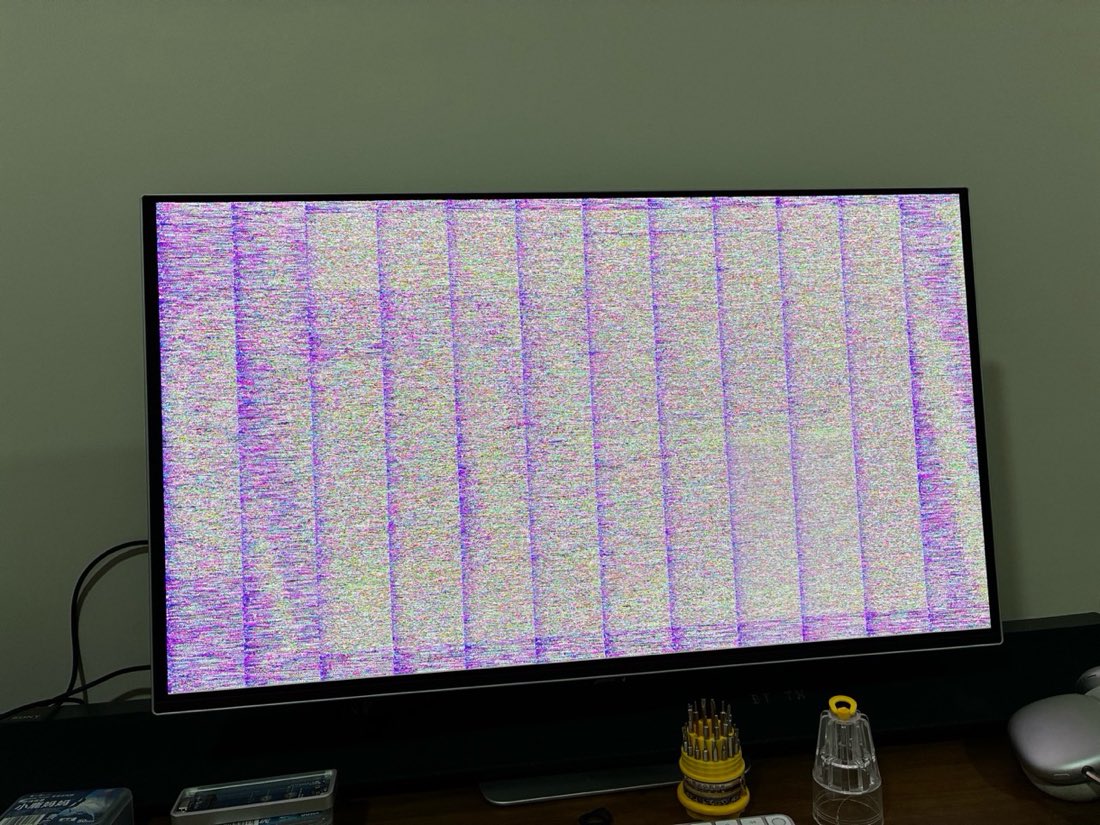
As soon as the monitor is connected, the screen fills with purple and yellow static in regular bands. You can faintly make out window outlines underneath. So the Mac is sending a picture, and it arrives at the monitor as garbage.
The awkward part is that macOS picks "Variable (48–240 Hertz)" for this monitor by default. The screen is unusable from the first second, and you cannot see System Settings to change the refresh rate.
What I tested
I changed one thing at a time.
| Test | Result |
|---|---|
| 4K 60Hz | Fine |
| 4K 120Hz | Fine, also with HDR on |
| 4K 240Hz, variable (48–240) | Static |
| 4K 240Hz, fixed | Static |
| The other two rear Thunderbolt 5 ports | Same on all three |
| Scaled resolutions (1920×1080, 2496×1404) | Still static at 240Hz |
| macOS 27.0 | Static |
| macOS 27.0.1 (booted from an external drive) | Static |
| macOS 27.2 beta 2 | Static |
Two of these need a note.
Changing the scaled resolution does not help. Choosing "1920×1080" or "2560×1440" in Displays settings only changes the size of text and windows. The signal the Mac sends to the monitor is still 3840×2160. As long as the refresh rate is 240Hz, every scaling option is garbled.
It is already garbled before macOS starts. While updating from 27.0 to 27.2 beta 2, the Mac restarted into the installer, which should show an Apple logo and a progress bar on a black background. This is what it showed instead. At this stage the display is driven by the boot firmware, and the 120Hz you chose in System Settings is not yet in effect.
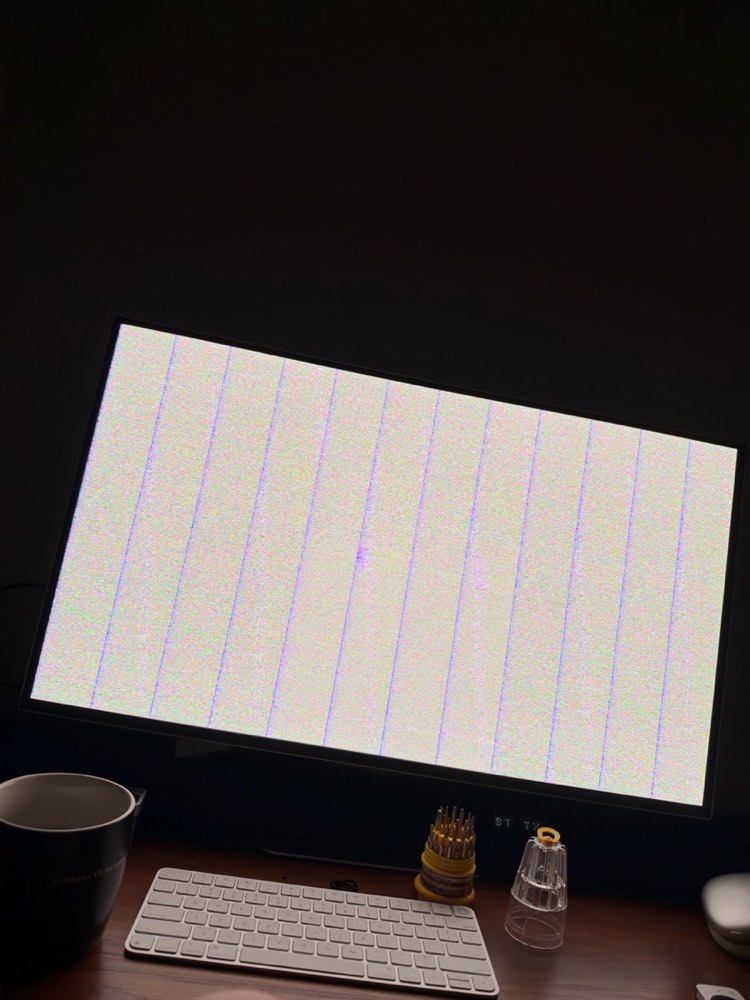
This has a practical cost. Anything shown while macOS is not running is invisible on this monitor: update progress, Recovery and startup options.
Controls: the same cable on other Macs
Swap the Mac and leave everything else alone.
| Mac | System | 240Hz |
|---|---|---|
| Mac Studio, M5 Max | 27.0 / 27.0.1 / 27.2 beta 2 | Static |
| MacBook Air 15-inch, M5 | 27.0.1 | Fine. Variable 48–240 Hertz and HDR both work |
| MacBook Pro 14-inch, M4 Max | macOS 27 | Fine |
| Mac Studio, M2 Ultra and M4 Max (last year) | The system of the time | Fine |
The MacBook Air row is the strongest evidence. It has the same chip generation, the same macOS version, the same cable and the same monitor as the Mac Studio. Only the Mac is different. An entry-level MacBook Air drives this monitor at its top specification, and the M5 Max Mac Studio does not.
That rules out the cable, the monitor, the macOS version and the idea that the whole M5 generation behaves this way. The problem is in this M5 Max Mac Studio.
One unit or the whole model? I do not know yet
The controls show that the problem is in this M5 Max Mac Studio. They cannot show the next step:
- It may be my unit: a hardware fault in this one machine, and another of the same model would be fine.
- It may be the model: every M5 Max Mac Studio does this with this combination, and it needs a firmware or system update from Apple.
I have no evidence either way. Telling them apart needs a second Mac of the same model with the same cable and monitor, which I do not have. I have not found a report online that matches mine exactly. That may mean it is rare, or only that the machine is new and few people have connected it to a 4K 240Hz monitor yet.
So this article describes one Mac. Please do not read it as "the M5 Max Mac Studio cannot do 240Hz". If you use an M5 Max or M5 Ultra Mac Studio with a 4K 240Hz monitor, whether it works or not, please tell me through the contact page and I will add the result here.
Why I suspect display stream compression (DSC)
This section is my inference, not a confirmed cause.
A USB-C to DisplayPort link of this kind cannot carry 4K 240Hz uncompressed. The Mac compresses the picture and the monitor decompresses it, a technique called Display Stream Compression (DSC). 60Hz and 120Hz carry far less data and depend on it much less.
DSC splits each frame into vertical slices and compresses them separately. Look at the first photo again: the picture is divided into 12 equal vertical bands. The 4K width divided by 12 is 320 pixels per band. It looks as if the monitor is decoding 12 slices and getting every one of them wrong.
A poor cable or a loose connector usually shows up as flicker, occasional blackouts or patches of corruption that come and go. Here the whole screen is wrong, steadily and in a regular structure. That looks more like the compressing side and the decompressing side disagreeing.
HDMI and HDR
With 240Hz not working over USB-C, I tried the HDMI port on the Mac.
- My old HDMI cable was only recognised up to 4K 60Hz.
- With a new Ultra High Speed HDMI cable, macOS offers up to 120Hz at 4K. 240Hz appears only at lower output resolutions.
- After about two minutes at 4K 120Hz over HDMI, the display output froze completely and recovered only when I unplugged the cable. The Mac did not restart and left no crash report.
In an earlier test the USB-C and HDMI outputs both dropped at the same time and the Mac stopped responding, so I had to restart it.
For HDR, the result depends on a setting on the monitor:
| Monitor Game Mode | Mac setting | Result |
|---|---|---|
| On | 120Hz, HDR on | Fine |
| On | 240Hz | Static |
| Off (the monitor reports 120Hz at most) | 120Hz, HDR off | Fine |
| Off | 120Hz, HDR on | Static |
| Off | 60Hz, HDR on | Fine |
120Hz with HDR works with the monitor's Game Mode on and fails with it off. The monitor reports different capabilities in the two modes, the Mac chooses a different output format to match, and some combinations work while others do not.
Workarounds
If you run into this, these are the things I actually used.
- Use a fixed 120Hz. In System Settings › Displays, change the refresh rate from Variable to 120 Hertz. This is the combination I have confirmed stable over long periods, and HDR can stay on.
- If the screen is already garbled and you cannot see the settings. Connect an HDMI cable as well and switch the monitor's input to HDMI. That path tops out at 60Hz and is not garbled. Once you can see, change the refresh rate of the USB-C display.
- Refresh rate is saved per display arrangement. A setting made with both cables connected does not carry over after you unplug HDMI. macOS switches back to the single-display arrangement and returns to 240Hz. I ended up using a small script that sets 120Hz as soon as it sees 240Hz.
- Turn off Game Mode on the monitor. With it off, this monitor offers 120Hz at most, so the Mac cannot select 240Hz, and the boot screen and Recovery become visible. The cost is that HDR cannot be used in this state and the monitor's variable refresh rate is gone.
Similar reports online
I have not found a report identical to mine, but there are several of the same kind, all about display output on the M5 generation:
- On Apple Support Communities, a user reports that an M5 Pro MacBook Pro lost the 165Hz mode on an LG ultrawide that worked on M1 Pro and M3 Pro, and links it to DSC.
- In another thread, M5 Pro and M5 Max MacBook Pros detect multiple displays unreliably, and one user fixed it by turning off DSC on the monitors.
- An older thread describes an M2 Ultra Mac Studio crashing with a 4K 240Hz monitor, where the temporary fix was also to drop to 120Hz.
These only show that 4K 240Hz with compression has long been a fragile combination on the Mac. They do not prove my case has the same cause.
If you only use 120Hz, or your monitor tops out at 120Hz or 144Hz, you will probably never see this. If you plan to use an M5 Max Mac Studio with a 4K 240Hz monitor, test the highest refresh rate and HDR on the day it arrives.
FAQ
Will an M5 Max Mac Studio always show static on a 4K 240Hz monitor?
Not necessarily. I tested one Mac and one monitor (Samsung G80SD over USB-C to DisplayPort). In that combination 240Hz always fails and 120Hz works. Whether this is my unit or the model in general is not known, and I have not tested other monitors or cables.
Is it the cable or the monitor?
No. The same cable and the same monitor run at 240Hz on an M5 MacBook Air and an M4 Max MacBook Pro.
Does updating macOS fix it?
I tried macOS 27.0, 27.0.1 and 27.2 beta 2, and all three behave the same. The screen is also garbled during a system update, when macOS is not running, so it does not look like something a macOS update alone can fix.
The screen is garbled and I cannot see anything. How do I change the refresh rate?
Connect an HDMI cable as well and switch the monitor's input to HDMI, which is not garbled. Then set the USB-C display to 120 Hertz in System Settings. You can also turn off Game Mode in the monitor's menu first, so that it offers 120Hz at most.
Read next
- iPhone 18 Pro vs iPhone 17 Pro: same size outside; cooling, battery life, charging and the Main camera compared from official specs.
- iPhone Duo Pre-Order Guide: pre-orders open at 8 PM on 16 October, with prices by region and launch-day pickup.
- Apple The Exchange TRX Restock Times: when iPhone 18 Pro and Pro Max come back in stock in Malaysia.
This is an independent third-party site with no affiliation with Apple Inc. or Samsung. The article records the author's tests on one Mac Studio he bought himself, from 2 to 5 October 2026, and describes only this Mac, this monitor and this cable. The section on the cause is the author's inference and has not been confirmed by Apple.